 Support Telecomtalk






Highlights
- Here are the top 5 hidden features to boost your iPhone's productivity and usability.
- These are available on both previous and the latest iOS versions.
- All of these features are free and are built into your iPhone.

Andrew Bonwick
Vice President of Product Development at Relm Insurance

Madhav Sheth
CEO of Ai+ Smartphone

Stephen Rose
CEO Render Networks



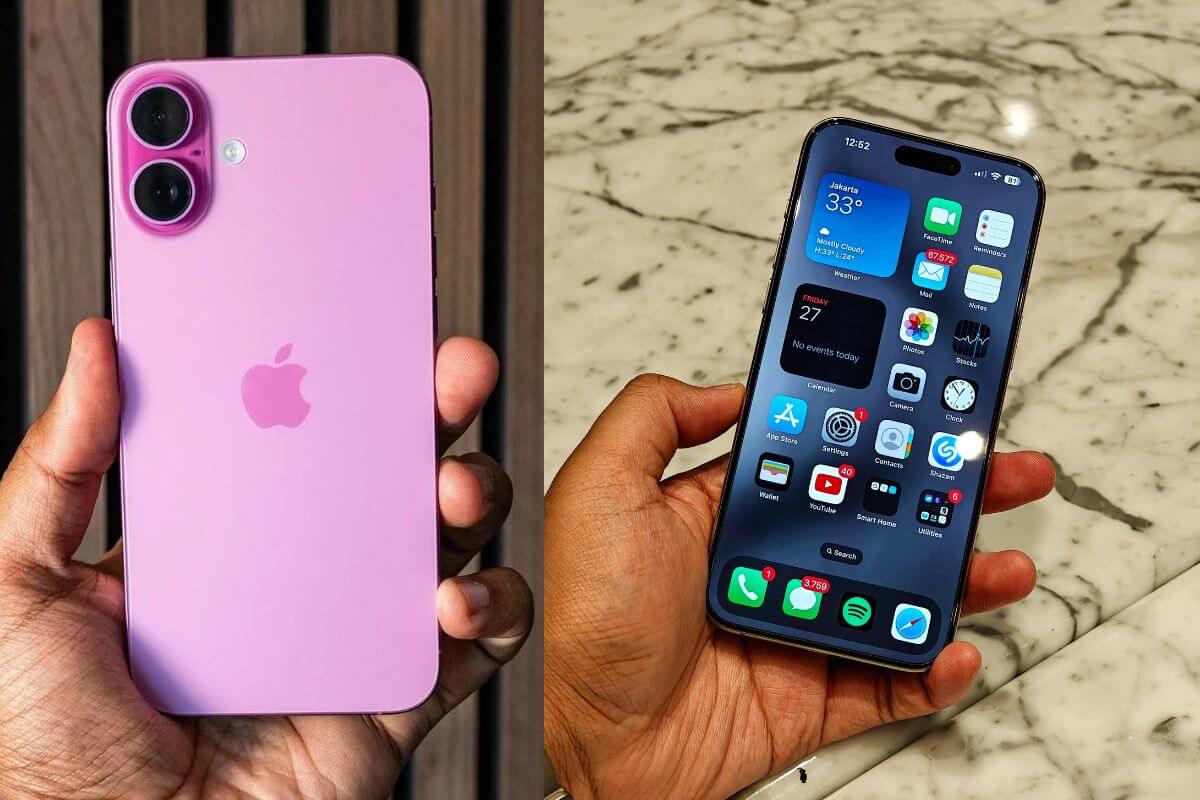
Do you own an iPhone? Apple has introduced many features and upgrades with its new iOS release, which we experienced during its keynote session; however, there are still some hidden features that are among the handy ones you should know about.
- Make Telecom Talk My Trusted Source



Key Highlights
- Here we cover lesser-known iPhone features that can boost your productivity and navigation.
- iOS has a dedicated “Visual Intelligence” feature that provides live information when you point your iPhone camera at an object.
- There is also a hidden keyboard feature that can turn the space bar into a touchpad.



1. Use Siri to Identify Objects with the Camera App
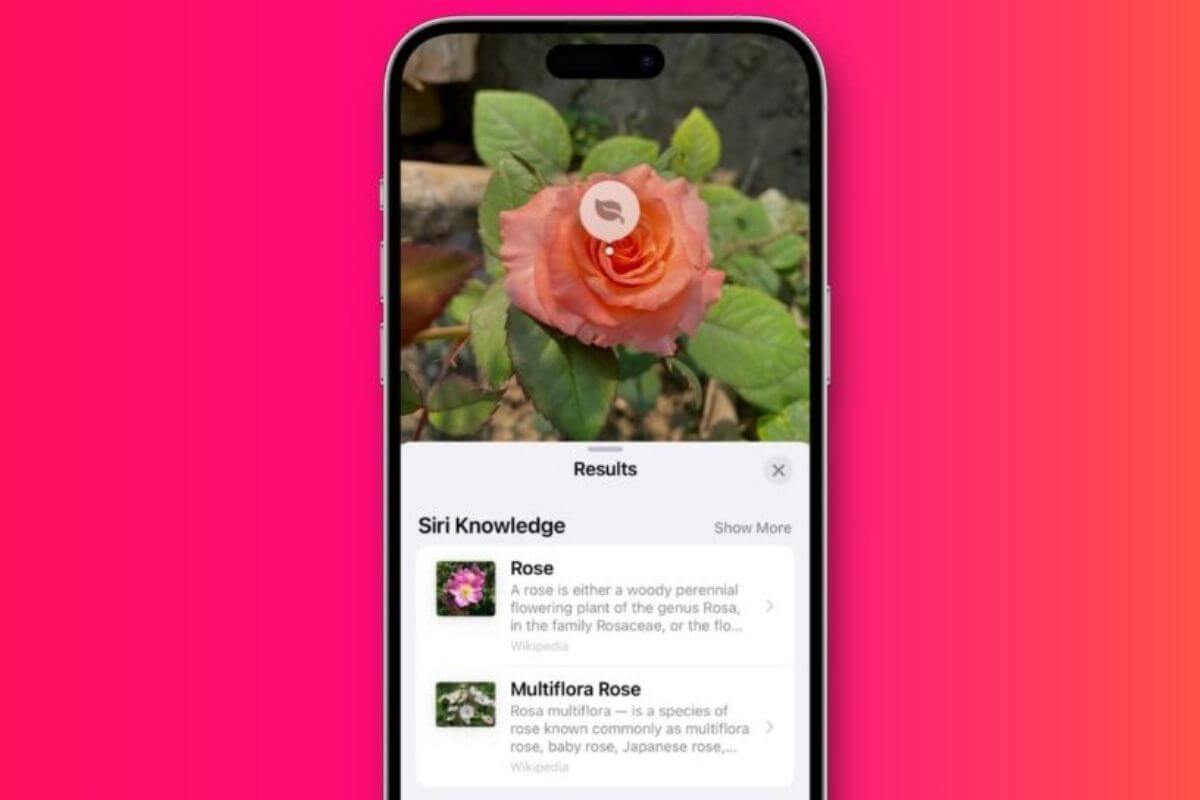
Image Credits: iDownloadBlog
Apple has revamped its camera app and added the “Visual Intelligence” feature on iOS. Visual Intelligence helps obtain information about objects appearing in the camera.
For example, if you want to identify a flower you are not familiar with, just take your iPhone and point the camera at it. The iPhone can automatically analyze and gather information from an LLM with Siri’s help.
Also Read: Top iOS 27 Features Coming to Your iPhone
2. Hidden Keyboard Trackpad
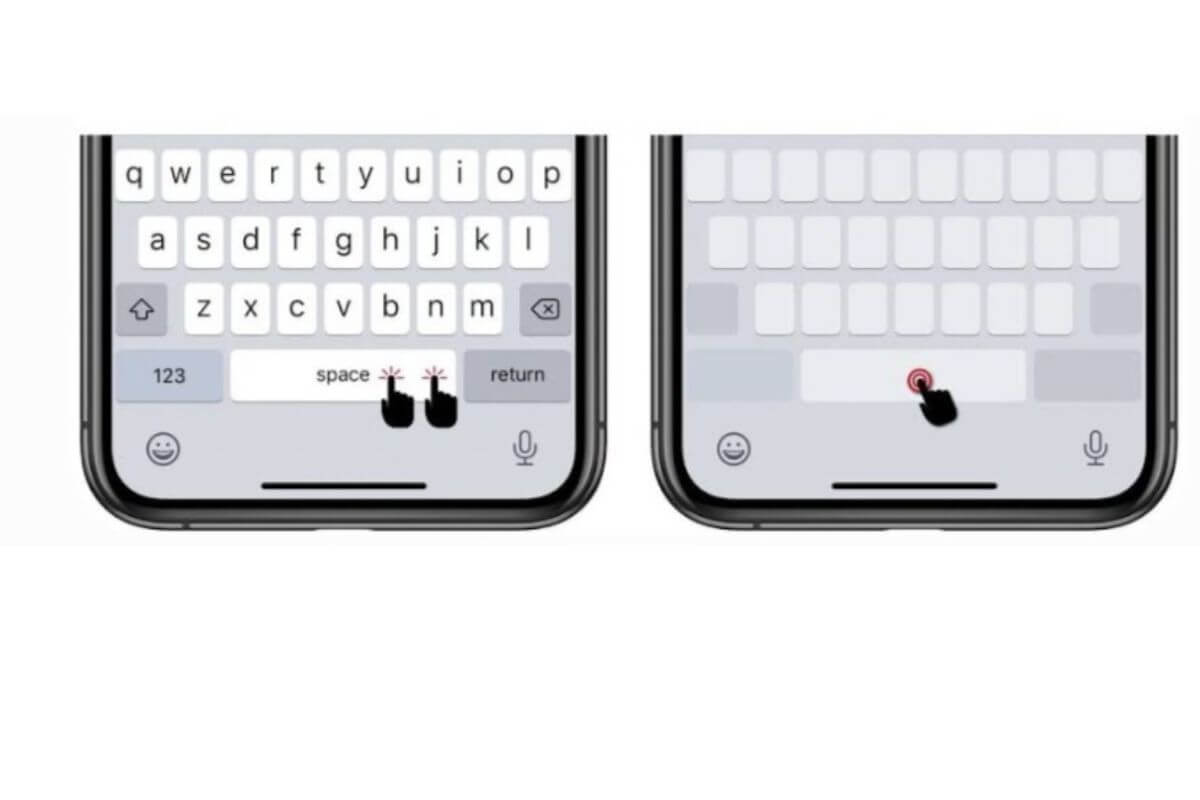
Image Credits: Computer Hardware
The change is also on iPhone’s keypad, where a “hidden trackpad” can be triggered by pressing and holding the space button. After holding it for 2-3 seconds, the characters on the keypad fade away, and the space bar acts like an “open trackpad”.
3. Back Tap Button
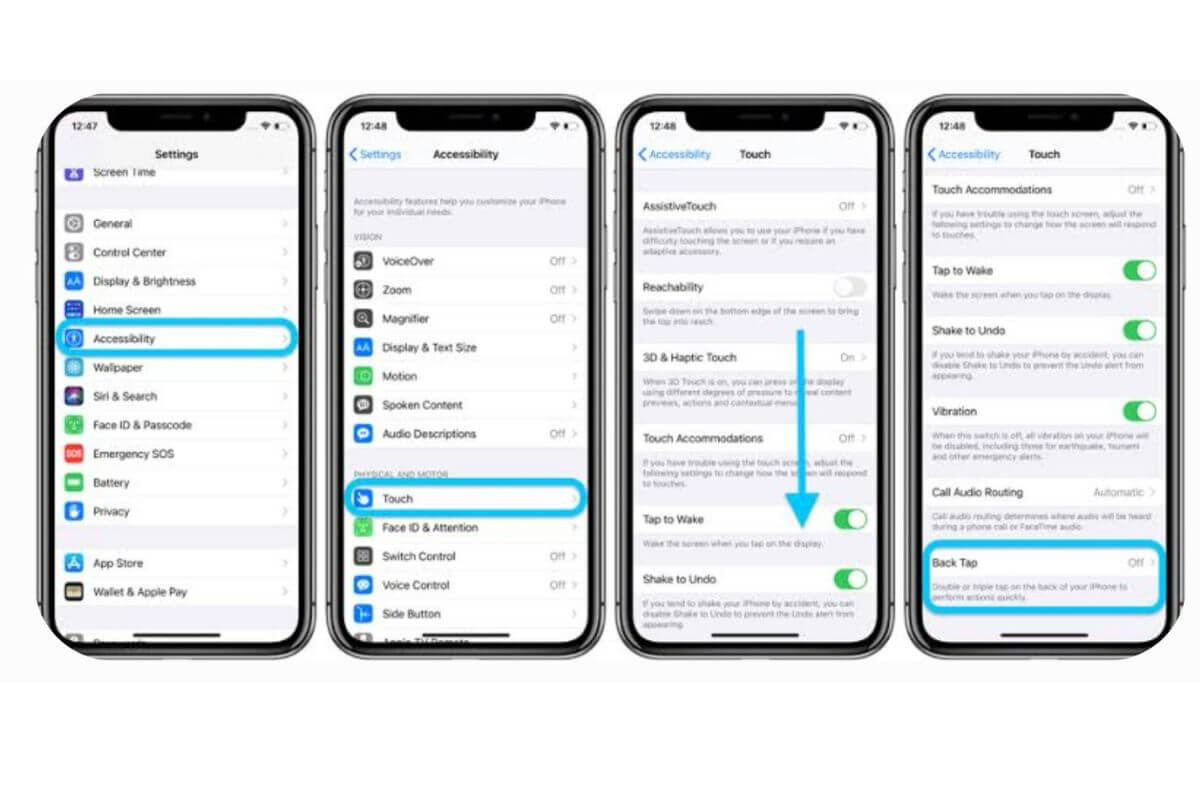
Image Credits: Forbes
Apple has secretly added a “Back Tap” button to its iPhones, allowing you to set up a custom shortcut to perform tasks. For example, you can set the back tap to take a screenshot or lock the phone. You can make the changes by opening the Settings app → Navigating tothe Accessiblity option → tapping on the Touch option → Scrolling down and enabling Back Tap.