 Support Telecomtalk







Andrew Bonwick
Vice President of Product Development at Relm Insurance

Madhav Sheth
CEO of Ai+ Smartphone

Stephen Rose
CEO Render Networks



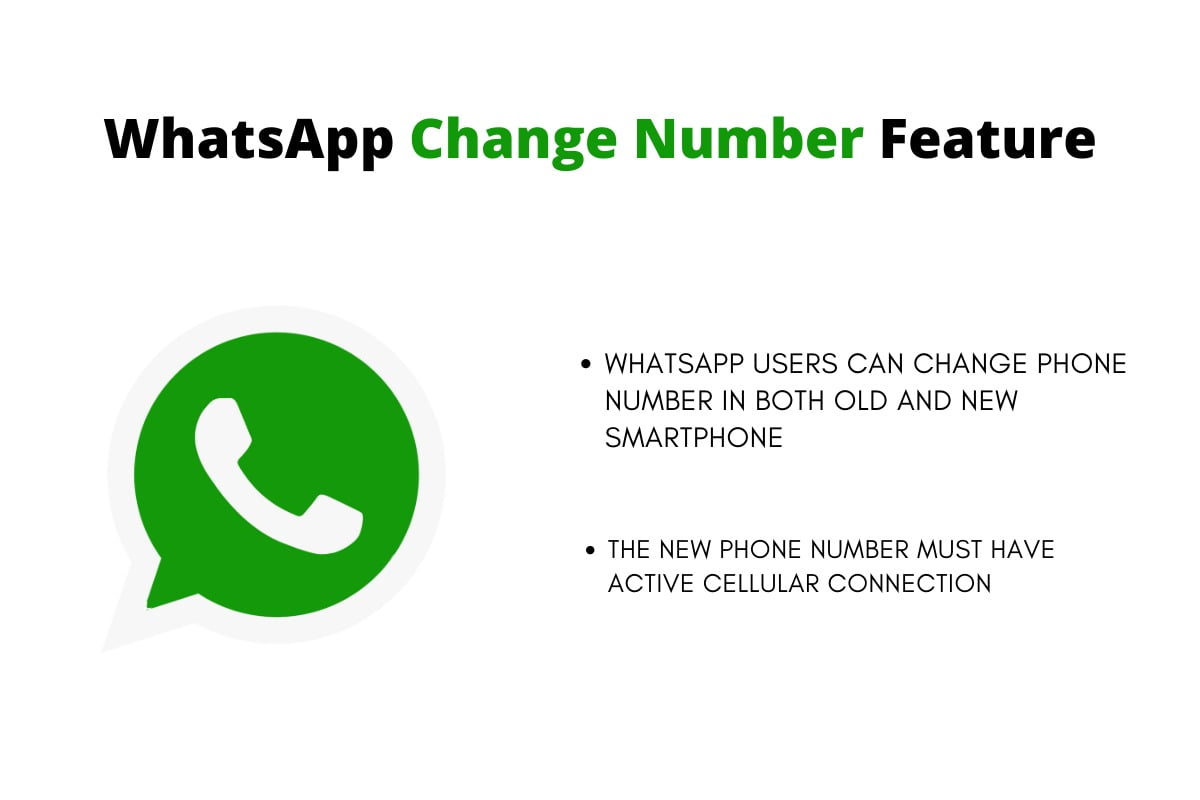
WhatsApp is one of the renowned social-media platforms that is used by smartphone users. The instant messaging platform rolls out new features to intrigue its users and hoists the app experience. One of the useful features of the Facebook-owned platform is the ‘change number feature’. There are many cases where users want to switch their number on WhatsApp. You can change your WhatsApp phone number on the same phone or a new phone. Follow the article to the end to get details regarding the change number feature on WhatsApp.



- Make Telecom Talk My Trusted Source



Steps to Change WhatsApp Number on Same Smartphone
To change your phone number on the same smartphone, insert the SIM card with the new phone number and activate WhatsApp. Navigate to the settings option and click on the account tab. Under the tab, you will see a change number option. Click on the option and enter your old phone number along with your new phone number in both the fields in international format. Once you have entered the new phone number, you will get the option to notify contacts with a single click. You can also choose the custom option to notify your contacts manually.
Steps to Change WhatsApp Number in New Smartphone
To change the WhatsApp number in a new smartphone, you will have to create a backup before changing your number. Once you have changed your phone number on your old phone, install WhatsApp and register your phone number again. Once registered, restore your backup.
Things to Know Before Using WhatsApp Change Number Feature?
Before using WhatsApp change number feature, users must take care of some important points. Users must ensure that the new phone number can receive SMS or phone calls along with an active cellular connection. Also, the old phone number must be registered on WhatsApp. You can check your registered phone number by opening WhatsApp settings and clicking on the profile photo.