



Apps have become an intrinsic part of our lifestyle, to an extent that there is an app for everything. Right from shopping to editing, or even hiding GPS location, you name it, and there is some or the other app to fulfill your requirement. Keeping our ever increasing requirements in mind, Google Play Store also keeps on adding more and more apps to its platter on a daily basis.
One thing that is a base to get apps on your Android smartphone is a reliable data connection. Sometimes one is caught in a situation where they want to install a specific app that is on their friend’s phone, but they can’t because of an exhausted data pack. In such condition, Bluetooth transfer can come up as a relief, which means that you can ask your friend to transfer the app via Bluetooth to your device. Thankfully, Google has facilitated this feature that allows us to transfer or receive apps via Bluetooth. Although, to enable the functionality, you got to follow the process given below.
The Process:
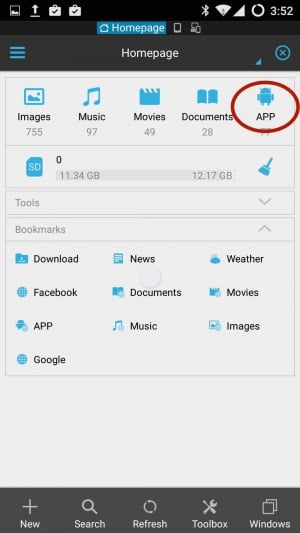
1. You need the 'ES Explorer' app installed on your device, it allows users to transfer any app to other Android devices (smartphones/tablets) via Bluetooth. After installing the app, you will see the app's home screen as shown in an image below. You got to swipe right to get the 'app' option.
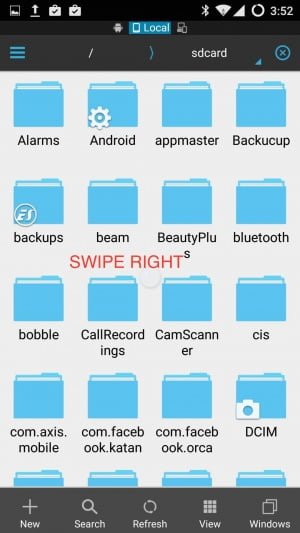
2. After swiping right, you will find the 'app' option in the top right corner of the screen, as shown in the image below.
3. Tap on the 'app' option, it will take you to a list of installed apps on your device. From the list, you can select the app that you want to transfer via Bluetooth. As shown in the picture below, we have selected the Book My Show app to be transferred to another device via Bluetooth.
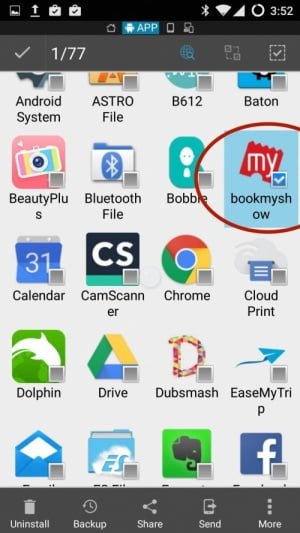
4. After selecting the app, you got to hold the app icon and drag it to the extreme left corner, where you will find the share option. Look at the image below for more reference.

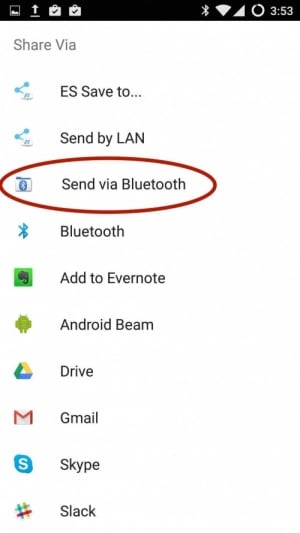
5. After dragging the app to share option, you will find various sharing options as shown in the image below. Select the 'Send via Bluetooth' option to transfer the app to another device via Bluetooth.
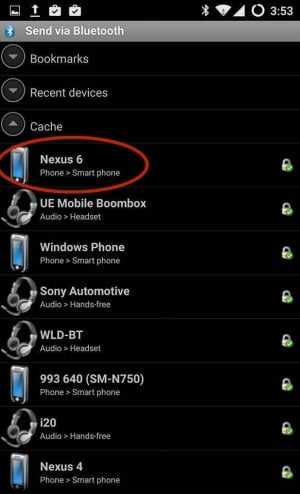
6. After selecting the 'Send via Bluetooth' option, the app will show you the available Bluetooth devices (as shown in the image below). Select the device to which you want to transfer the app. After selecting the device, ES Explorer will initiate the app transfer.
The process mentioned above works for most of the Android smartphones and tablets. We hope that this guide would come handy to you whenever you want to share an app with your friend via Bluetooth.