 Support Telecomtalk







Andrew Bonwick
Vice President of Product Development at Relm Insurance

Madhav Sheth
CEO of Ai+ Smartphone

Varun Kashyap & Sridevi Reddy
Co-Founders, Zithara.ai
Transforming Indian Offline Retail and Customer Engagement Using AI


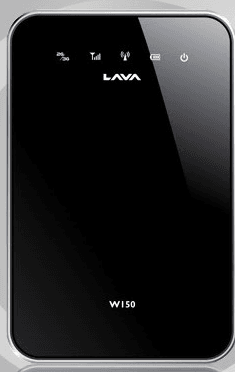 When I got the Lava W150 package, I was just surprised to see the cute small box for the device. Well I am telling you when I opened the box, I find the damn sexy, sleek & small W150.
- Make Telecom Talk My Trusted Source



The package contains the Lava W150, Quick User Guide, Warranty Card, a charger (for AC and USB charging) and a black pouch.After getting the device, I put it on charging for 2 hours which provides me enough charge to start my first date with W150.
It is very much Plug-n-play device, I just switched on it and insert my Huawei E1550 3G modem in its USB port.
It catches the signal very fast but took a minute to connect to internet. You don’t need to do anything; it will obtain the APN and connect to internet via GPRS/3G automatically.
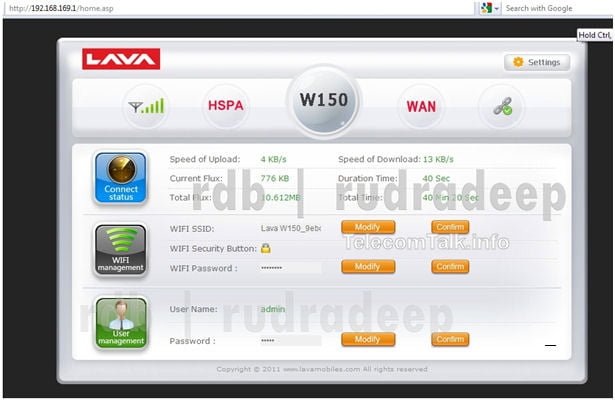
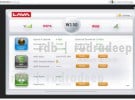
This screenshot looks a like a modem dashboard, but it is actually shown on your web browser. W150 uses web interface, as it works with Windows or Linux simultaneously with any browser. I tested with Opera & Firefox on Windows 7 and Opera, Firefox and Chromium on Ubuntu. Lastly I tried it with Android browsers too, it works flawlessly.
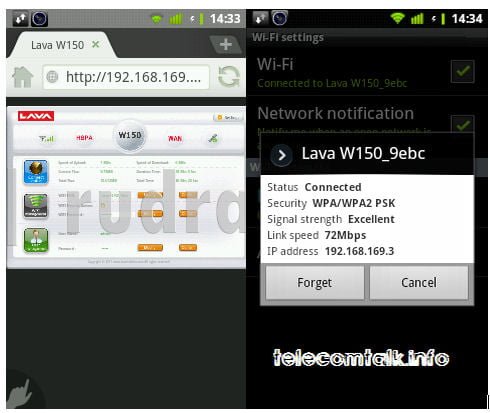
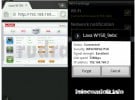
[Screenshot from Android phone Samsung Galaxy 3]
Tested with EVDO Modem:
It did not work, as I used MTS MBlaze which had a network issue that time. Network was in & out in seconds. But I think it would work with all EVDO or 1x devices pretty much without any extra effort.
To access this & unveil all the features under the hood you have to go to ‘192.168.169.1’ or’router.3g’ from your browser’s address bar. The very neat interface will appear on browser screen.
Under the Settings you will find lot of stuffs waiting for configuring, which often do not need to edit. Click on any settings, and a Help will also appear on the right side.