
Saving a reel to your collection does not put the video on your phone. That bookmark is a pointer. Tap it in a tunnel, on a ghat section, or anywhere your network shows one bar and an E, and you get a spinning circle. The same goes for most of what we think of as “saved” on a smartphone. It lives on a server, and the app fetches it when you ask.
Key Highlights
- Download Google Maps offline areas, Spotify podcasts and your favourite Instagram reels before travelling.
- Instagram saved reels require an internet connection, but public reels can be downloaded for offline viewing.
- Test all downloaded content in Aireplane Mode and manage storage before you start your journey.
Most people discover this at the worst moment: forty minutes into an overnight train, with the next proper tower somewhere past the hills. So here is the routine worth running the evening before, on home Wi-Fi, while downloading costs nothing from your daily quota.
Also Read: Not All Phones Will Get All ColorOS 17 Features, Says OnePlus
Step 1. Maps Go First
Navigation is the one thing you might actually need offline, so start there.
In Google Maps, tap your profile picture, open Offline maps and choose Select your own map. Drag the box over the area you are travelling to, then download. Search and driving directions keep working inside that box without a connection. Live traffic does not, for obvious reasons.
Draw the box generously. Plans change, and the station you get off at is not always the one you booked.
Also Read: Vodafone Idea Seeks Spectrum Renewal in Select Circles: What It Means for Users
Step 2. Music and Podcasts
Spotify draws a clear line here. On the free tier, you can download podcasts for offline listening, and only podcasts.
Songs offline need Premium. Either way, the app wants to come online at least once every 30 days to keep the downloads valid, which matters only if the trip is very long.
Download whole episodes rather than trusting the app to stream ahead. A cached half-episode is a cliffhanger nobody asked for.
Step 3. The Reels You Actually Want to Watch
This is where people get caught out, because Instagram has no offline mode for reels in the app. Your saved collection still needs a network to play. You have two ways around it.
The first is Instagram’s own download option for public reels, tucked into the share menu.
It works when the creator has allowed downloads, and the file it saves carries an Instagram watermark and the creator’s username.
For a clip you plan to forward to the family group, that stamp is fine. For anything you want to watch cleanly, it gets in the way, and on reels where the creator switched downloads off, the option is simply missing.
The second is a browser tool. The one we use for this is fastdl: copy the link to a public reel, paste it into theInsta video download page, and an MP4 lands in your Downloads folder.
No sign-in, no app to install—which counts for something on a phone that is already short on storage.
The free version saves reels at 720p. On a phone screen in a sleeper berth, nobody will notice.
Two limits worth knowing. It only works for public accounts, so a friend’s private profile is off the table, as it should be.
And it fetches one reel at a time, so this is for the twenty you really want, not the whole feed.
Also Read: Airtel Plans Rs 1,200 Crore Investment in Three Assam Data Centers
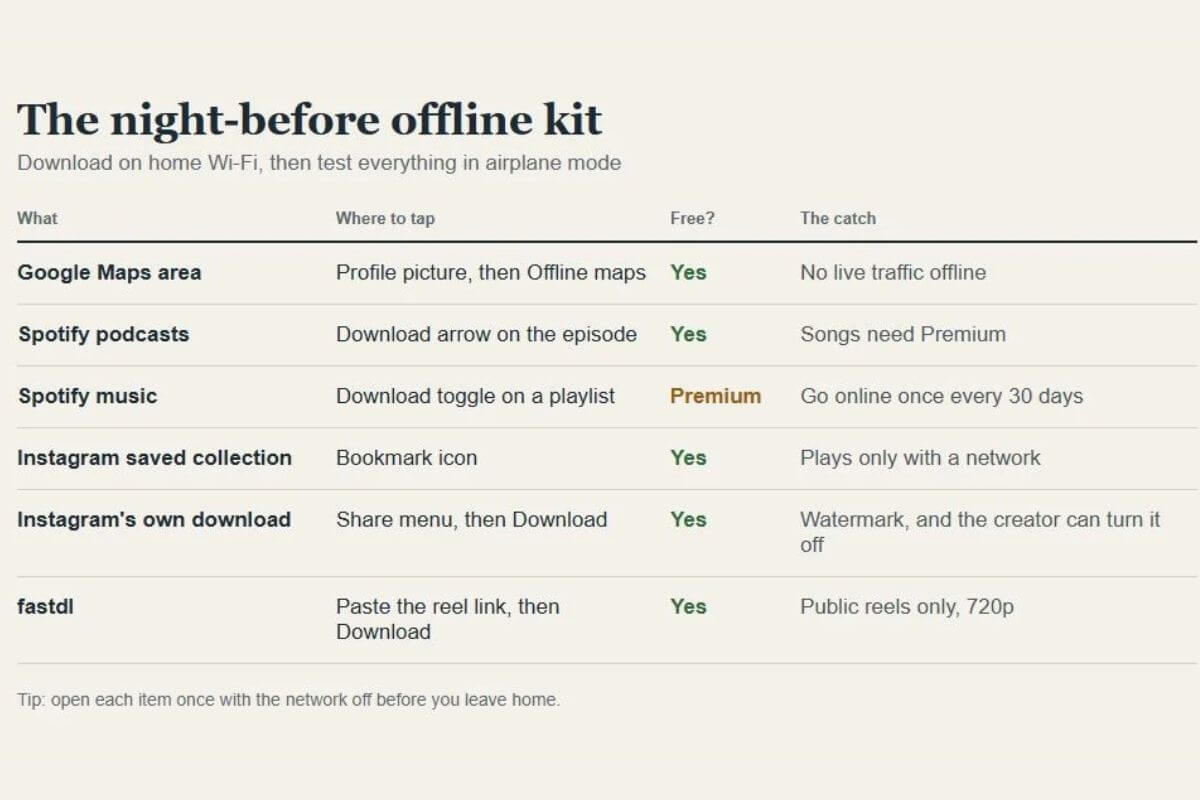
The Checklist, In One Place
| What | Where to tap | Free? | The catch |
| Google Maps area | Profile picture, then Offline maps | Yes | No live traffic offline |
| Spotify podcasts | Download arrow on the episode | Yes | Songs need Premium |
| Spotify music | Download toggle on a playlist | Premium | Go online once every 30 days |
| Instagram saved collection | Bookmark icon | Yes | Plays only with a network |
| Instagram’s own download | Share menu, then Download | Yes | Watermark, and the creator can turn it off |
| fastdl | Paste the reel link, then Download | Yes | Public reels only, 720p |
Step 4. Test It in Airplane Mode
This step takes two minutes, and almost nobody does it.
Before you leave, switch on airplane mode and open everything you downloaded. Pan the offline map. Start a podcast. Play two of the reels from your gallery or Files app. If something spins, you find out at home, on Wi-Fi, instead of on the platform.
Then turn airplane mode off again. You would be surprised how many missed calls start that way.
Also Read: Bharti Airtel TRAI-Mandated Packs for November 2026
Step 5. Mind the Storage
Offline content is not free in the other sense. A large map region, a few podcast episodes and a couple of dozen reels add up on a 64 GB phone that also holds three years of WhatsApp media.
Make one folder for the trip and put the reels there. When you are back on a strong network, delete what you have watched. The map can stay, since Google updates downloaded areas over Wi-Fi when it can.
What the Network Cannot Fix
Coverage keeps improving, and the dead patches get shorter every year. They have not gone away, though, and the gap between “my phone has it” and “my phone can fetch it” is still the difference between a calm eight hours and a long one.
Ten minutes on Wi-Fi the night before closes most of that gap.
Image Credits: Aryan Gupta, Abhishek Bhatnagar


